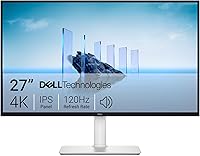
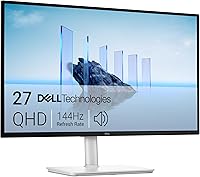
Dell S2725QC vs Dell U2725QE: Which to Buy? (November 2026)
Buy the Dell UltraSharp U2725QE for color-critical creative work and Thunderbolt 4 docking; buy the Dell S2725QC for everyday 4K office and home use. The U2725QE wins overall on panel quality, ports and calibration, while the S2725QC costs less and adds built-in speakers.
On this page (8 sections)
Buy the Dell UltraSharp U2725QE for color-critical creative work and Thunderbolt 4 docking; buy the Dell S2725QC for everyday 4K office and home use. In this Dell S2725QC vs Dell U2725QE comparison, the U2725QE wins overall on panel quality, ports and factory calibration, while the S2725QC covers the basics for less.
Both are 27-inch 4K Dell monitors with a 120Hz refresh rate. That shared ground makes the choice about color coverage, connectivity and the stand, not resolution.
The U2725QE sits in Dell's UltraSharp line, aimed at designers and editors. The S2725QC comes from the Dell Plus family, aimed at general office and home desks.
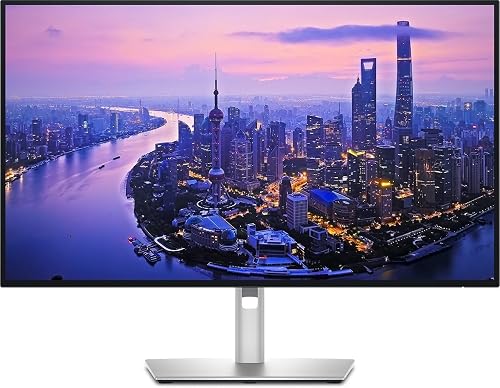 Best for color-critical creative work
Dell UltraSharp U2725QE 27-Inch 4K UHD IPS

Dell S2725QC vs Dell U2725QE: the short answer
The UltraSharp U2725QE is the better monitor for most people who care about picture quality. Its IPS Black panel, wide color coverage and Thunderbolt 4 hub put it ahead of the S2725QC on every spec that separates a professional display from a good everyday one.
The S2725QC is not a stripped-down screen. It runs the same 3840 x 2160 resolution at up to 120Hz and covers 99% sRGB, which is plenty for spreadsheets, video calls and streaming.
The gap opens on color accuracy and connectivity. The U2725QE covers 99% DCI-P3 and ships factory calibrated to Delta E under 1.5.
The S2725QC covers 99% sRGB without a factory calibration figure.
Thunderbolt 4 is the other divider. The U2725QE sends video, data and up to 140W of power down one cable and can daisy chain two more 4K monitors.
The S2725QC offers USB-C with up to 65W.
If your work lives in a browser and a document editor, the S2725QC is the smarter buy. If color decisions cross your desk, the U2725QE earns its higher tier.
The two side by side
The table below lines up the specs that change the buying decision. Read it as a map of where the extra money goes on the U2725QE.
| Product | Best for | Panel | Resolution | Refresh rate | Our score |
|---|---|---|---|---|---|
| Dell UltraSharp U2725QE 27-Inch 4K UHD IPS | color-critical creative work | IPS Black | 3840 x 2160 | 120Hz | 9.5 |
| Dell S2725QC | everyday office and home desks | IPS | 3840 x 2160 | 120Hz | 8.7 |
| Feature | Dell UltraSharp U2725QE | Dell S2725QC |
|---|---|---|
| Panel | IPS Black | IPS |
| Resolution | 3840 x 2160 | 3840 x 2160 |
| Refresh rate | 120Hz | Up to 120Hz |
| Response time | 5ms | 0.03ms |
| Color coverage | 99% DCI-P3, Delta E under 1.5 | 99% sRGB |
| Brightness | 450 cd/m² | 350 cd/m² |
| Contrast ratio | 3000:1 | 1500:1 |
| HDR | VESA DisplayHDR 600 | HDR ready |
| Adaptive sync | G-Sync | FreeSync Premium |
| USB-C power | Up to 140W via Thunderbolt 4 | Up to 65W |
| Daisy chain | Up to two more 4K monitors | No |
| Speakers | None | Built-in |
| Stand | Height, tilt, swivel, pivot | Height, tilt, swivel, pivot |
The resolution and refresh rate row reads the same, and that's the point. The differences show up in panel depth, color range and what the single cable can carry.
Where the numbers match
Both screens put 3840 x 2160 pixels on a 27-inch 16:9 panel. Text looks sharp at that pixel density, and you get the same desktop space for windows.
Both run at 120Hz, so scrolling and cursor movement feel smoother than a 60Hz screen. Each stand offers height, tilt, swivel and pivot adjustment, and each is VESA mountable.
Where they pull apart
The U2725QE uses an IPS Black panel with a 3000:1 contrast ratio, double the S2725QC's 1500:1. Deeper blacks matter in dark scenes and dark-mode interfaces.
Brightness differs too: 450 cd/m² on the U2725QE against 350 on the S2725QC. The UltraSharp also carries VESA DisplayHDR 600.
The S2725QC's 0.03ms response time figure is lower than the U2725QE's 5ms. That's a spec-sheet win for gaming motion, not a reason to call it the better all-round monitor.
Color accuracy decides creative work
Pick the U2725QE if color has to be right; pick the S2725QC if color just has to look good. This is the first fork in the road, and it's the one most buyers should weigh first.
The U2725QE covers 99% DCI-P3 and comes factory calibrated to Delta E under 1.5. For photo retouching, video grading and print prep, that's the kind of starting point you can trust without renting a calibrator on day one.
Factory calibration isn't a permanent guarantee. Panels drift over time and with heavy use, so a periodic recheck still makes sense for paid color work.
The included calibration report gives you a baseline to compare against.
The S2725QC covers 99% sRGB. That's the color space most web content and office software assume, so documents, dashboards and streaming look accurate in their own terms.
If your files leave sRGB for print or HDR delivery, the U2725QE is the monitor built for that job.
Who needs DCI-P3 coverage
Video editors, photographers who deliver to clients and anyone preparing images for print benefit from the wider gamut. The U2725QE's IPS Black contrast also helps when you grade shadows and highlights.
When sRGB is enough
Spreadsheets, email, writing, coding, video calls and streaming all sit comfortably in sRGB. The S2725QC handles those tasks without a visible shortfall.
Ports and charging decide your desk setup
Choose the U2725QE if one cable should run your whole desk; choose the S2725QC for a simple laptop hookup. Connectivity is the second big fork, and it matters as much as color for many buyers.
The U2725QE's Thunderbolt 4 connection carries video, data and up to 140W of power at once. It also supports daisy chaining up to two additional 4K monitors, so a single cable from the laptop can feed a three-screen desk.
Its port selection includes HDMI 2.1, USB-C, USB-A and Ethernet. That Ethernet port is a quiet win for desks on flaky Wi-Fi, since the laptop can take a wired connection through the monitor.
The S2725QC keeps it simpler: a single USB-C cable with up to 65W of power delivery, plus HDMI and USB. It's a clean setup for a laptop, a keyboard and a mouse, without the hub layer.
Laptop charging wattage
140W on the U2725QE covers most 14-inch and 16-inch creative laptops at full speed. 65W on the S2725QC suits ultrabooks and 13-inch machines, and many MacBook Air users will never notice the difference.
If your laptop ships with a charger above 65W, the S2725QC will charge it more slowly under load. The U2725QE is the safer single-cable bet for a power-hungry workstation laptop.
Multi-monitor plans
Daisy chaining is the U2725QE's standout feature for a two-screen or three-screen desk. The S2725QC needs its own cable run for a second display.
If a dual-monitor setup is the goal, read our guide to Dell vs Samsung monitors for work before you commit to a brand and hub design.
Picture quality beyond color
The U2725QE's IPS Black panel and higher brightness give it the edge for mixed work and media. Contrast and HDR support are where the two screens look most different in daily use.
A 3000:1 contrast ratio means dark backgrounds stay dark rather than washing to gray. The S2725QC's 1500:1 is typical for a good IPS panel, and fine for bright office rooms.
At 450 cd/m², the U2725QE has more headroom for a sunlit room or for HDR content. The S2725QC at 350 cd/m² is comfortable for a typical desk but has less reserve.
VESA DisplayHDR 600 on the U2725QE sets a baseline for HDR highlights. The S2725QC lists HDR readiness without that certification, so treat HDR there as a bonus rather than a feature to buy for.
Eye comfort features
Both monitors include low blue light modes. The U2725QE adds ComfortView Plus with an ambient light sensor that adjusts brightness automatically through the day.
The S2725QC's ComfortView Plus reduces blue light to 35% or less. Neither screen removes the need for breaks during long sessions.
Adaptive sync for mixed use
The U2725QE lists G-Sync, while the S2725QC pairs its 120Hz panel with AMD FreeSync Premium. Both help with tearing in games and smooth motion in video.
For an office desk that doubles as a light gaming station, either works. The S2725QC's FreeSync Premium and low response time figure suit fast games, while the U2725QE's contrast and color suit slower, richer titles.
Ergonomics and desk fit
Both stands adjust the same way, so ergonomics won't decide this one. Height, tilt, swivel and pivot adjustment appear on both monitors, and both mount to a VESA arm.
That's good news for anyone who works long hours. You can raise either screen to eye level, angle it away from a window glare and rotate it to portrait for long documents.
The difference is weight. The U2725QE weighs about 9.72 kg, which is heavy for a 27-inch monitor.
The S2725QC weighs 14.8 pounds, so it's easier to lift onto a desk or arm alone.
Check your monitor arm's rated load before hanging either screen. A heavier UltraSharp may need a sturdier arm, and the built-in hub adds cables to route.
Built-in speakers
The S2725QC has built-in speakers, which saves desk space and cable clutter. The U2725QE has no speakers, so plan for a separate pair or use your laptop's.
If you take a lot of video calls without a headset, the S2725QC's speakers make it the tidier desk choice. The U2725QE assumes you already have audio sorted.
Cable management and hub clutter
The U2725QE's hub means more cables behind the screen, but fewer on the desk. Laptops, Ethernet and USB accessories all land at the monitor, so the desk surface stays clear.
The S2725QC keeps cabling minimal with its single USB-C approach. Fewer ports mean less to manage, and less to troubleshoot when something disconnects.
Who should buy which Dell monitor?
Most office and home buyers should take the S2725QC; creative professionals should take the U2725QE. This split covers the common cases, and it follows the same scores used in this comparison.
Buy the Dell S2725QC if…
You work in documents, browsers, spreadsheets and email, and you want a sharp 4K screen at 120Hz. The S2725QC's 99% sRGB coverage handles everyday color well, and its 65W USB-C charging keeps a lightweight laptop topped up.
It also suits a desk that needs speakers built in and a screen that's easy to move. If you've been weighing Dell against other brands, our look at whether Dell monitors are good for a home office covers build quality and support patterns.
Buy the Dell UltraSharp U2725QE if…
Your work involves photos, video or design files that need wide color coverage. The 99% DCI-P3 panel and Delta E under 1.5 calibration are the reasons to pay more, and Thunderbolt 4 with 140W charging turns the monitor into the hub for a whole desk.
It also suits a multi-monitor plan, thanks to daisy chaining for two more 4K screens. If you're comparing smaller Dell models in the same family, our Dell S2725DSM vs S2725QS comparison shows how the lower-tier variants stack up.
When to look at another brand
If you want an OLED panel or a different stand design, neither Dell fits. Our guide to whether LG monitors are good for work covers the alternatives if you're shopping beyond Dell.
The verdict
The Dell UltraSharp U2725QE wins this comparison for most people who care about their screen, and the Dell S2725QC wins for value on an everyday desk. In the Dell S2725QC vs Dell U2725QE decision, the U2725QE's color accuracy, contrast and Thunderbolt 4 hub justify its higher tier.
Pick the U2725QE if color decisions are part of your job or if you want one cable to run a laptop, Ethernet and two more 4K displays. Its 99% DCI-P3 coverage, Delta E under 1.5 and 3000:1 IPS Black contrast put it clearly ahead on picture quality.
Pick the S2725QC if your work stays in sRGB and your laptop charger is 65W or less. You still get 4K at 120Hz, a fully adjustable stand and built-in speakers, and you save desk space and money.
The deciding question is simple: does your work depend on accurate wide-gamut color? If yes, buy the U2725QE.
If no, the S2725QC is the sensible 4K Dell for your desk.
Frequently asked questions
Is the Dell U2725QE worth it over the S2725QC?
Yes if you edit photos or video and need wide color coverage. The U2725QE covers 99% DCI-P3 and comes factory calibrated to Delta E under 1.5, while the S2725QC covers 99% sRGB.
For documents, email and web browsing, the S2725QC does the same 4K job for less.
Do both Dell monitors run at 120Hz?
Yes. Both the U2725QE and the S2725QC run a 4K UHD 3840 x 2160 picture at up to 120Hz.
The U2725QE lists a 5ms response time and G-Sync support, while the S2725QC pairs its 120Hz panel with AMD FreeSync Premium.
Which monitor charges a laptop faster?
The U2725QE delivers up to 140W over Thunderbolt 4, enough for most 14-inch and 16-inch creative laptops. The S2725QC delivers up to 65W over USB-C, which suits lighter ultrabooks.
Check your laptop's charger wattage before you rely on either cable.
Can I daisy chain a second monitor from either Dell?
Only the U2725QE lists Thunderbolt 4 daisy chain support for up to two additional 4K monitors. The S2725QC has a single USB-C connection with power delivery but no listed daisy chain feature.
Plan a separate cable run if you want a two-screen desk with the S2725QC.
Which is better for a MacBook?
The U2725QE suits MacBook Pro users who want one Thunderbolt cable for video, data and charging. The S2725QC works well for a MacBook Air, since 65W covers its typical charger.
On either, expect a crisp 4K desktop at 120Hz rather than Retina pixel density.
Do either of these monitors have speakers?
The S2725QC has built-in speakers with re-engineered sound that Dell describes as deeper and louder than the previous generation. The U2725QE has no built-in speakers, so budget for a separate pair or use the ones in your laptop.