How to Set Up Dual Monitors With a Laptop
To set up dual monitors with a laptop, check that it supports two external displays, connect both screens through compatible ports or a dock, then set their layout in display settings. Your laptop's graphics hardware and operating system determine whether the screens can show separate images.
On this page (9 sections)
- How do you set up dual monitors with a laptop?
- What should you check before connecting the screens?
- Should you connect the monitors directly or use a dock?
- How do you arrange the screens in display settings?
- How should you position the monitors on your desk?
- What monitors can you use for a two-screen setup?
- Why is one of the monitors not working?
- How do you make dual monitors easier to use?
- What is the simplest way to set up two monitors with a laptop?
To set up dual monitors with a laptop, check that it supports two external displays, connect both screens through compatible ports or a dock, then arrange them in display settings. Your laptop's graphics hardware and operating system determine whether the screens can show separate images.
Start by checking the laptop's manual or support page for its external-display limit. Then match that support to your monitor inputs, cables, and any dock you plan to use.
How do you set up dual monitors with a laptop?
Connect both monitors to supported video outputs, power them on, and set the laptop to extend its desktop. The exact steps depend on your laptop, operating system, and connection method.
- Check how many external displays your laptop supports.
- Identify the video ports on the laptop and both monitors.
- Choose compatible cables or a dock that supports the displays.
- Connect the screens and select the right input on each monitor.
- Open display settings, detect the screens if needed, and choose Extend.
- Arrange the screen icons to match where the monitors sit on your desk.
If you want help choosing a screen before setting up the desk, see our guide to monitors for a laptop home office.
What should you check before connecting the screens?
Check the laptop's display limit, available ports, and operating system first. A USB-C port can carry video on some laptops, but its shape alone doesn't confirm that it supports a display.
Look in your laptop's specifications for terms such as DisplayPort over USB-C, Thunderbolt, or the maximum number of external displays. Check resolution limits too, especially if both screens are high resolution or you plan to use a high refresh rate.
Then look at the inputs on each monitor. HDMI and DisplayPort are common, but the laptop and monitors need a compatible connection on each path.
If the ports don't match, use an adapter or dock that supports the laptop's video output.
Our guide to USB-C vs HDMI for a monitor explains what to check when choosing between those connections. Don't assume an adapter can add display support that the laptop itself doesn't have.
Should you connect the monitors directly or use a dock?
Connect the screens directly if your laptop has enough supported video outputs; use a dock if you need a central connection point or more ports. In either case, confirm that the laptop can drive both monitors in the setup you want.
A dock can reduce the number of cables you connect each time you sit down. Its display support still depends on the laptop, the dock's connection type, and your operating system.
The Anker 8-in-1 Dual Monitor Dock supports two HDMI displays at up to 4K at 30Hz, according to Anker. With macOS, the two external monitors show the same image, so check this limitation if you need separate desktop space.
The Dell Pro Docking Station WD25 supports Windows, Ubuntu, Red Hat Enterprise Linux, and ChromeOS versions listed for the dock. Its display support and power delivery make it worth considering for a compatible work laptop, though your computer's own limits still apply.
How do you arrange the screens in display settings?
Set the display mode to Extend and drag the screen icons to match your desk. This lets you move the pointer between screens in the same direction that they sit in front of you.
On Windows, open Settings, choose System, then Display. Select Extend these displays under the multiple-display options.
If a monitor doesn't appear, use the detect option and check its power, input, and cable.
On macOS, open System Settings and choose Displays. Arrange the display images to match your physical layout, and check the options for mirroring or extending.
Move a window across the edge between screens to confirm the arrangement. If the pointer goes the wrong way, return to the arrangement view and move the display icons.
How should you position the monitors on your desk?
Place the screens close together at a comfortable viewing distance, with their top edges near eye level. Keep the monitor you use most directly in front of you and turn the second screen slightly toward your seat.
The HUANUO FlowLift Dual Monitor Stand fits screens from 13 to 32 in that weigh 4.4 to 19.8 lb each and have VESA 75 x 75 mm or 100 x 100 mm mounting holes. Its desk requirements include a wooden surface 0.59 to 3.54 in thick, without a crossbeam or panel where the clamp attaches.
Check each monitor's weight and mounting pattern, and measure the desk before choosing a stand. If your monitors don't meet those conditions, use their included stands or find a mount with a suitable fit.
What monitors can you use for a two-screen setup?
Choose monitors that fit your desk and use connections your laptop supports. Matching size and resolution can make windows look more alike, but two different screens can work if you arrange them to suit your tasks.
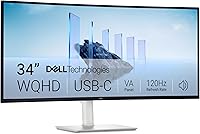
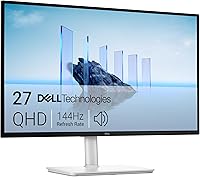
The Dell SE2426H is a 23.8 in, 1920 x 1080 IPS monitor with two HDMI inputs. It can serve as one screen in a basic office setup, but your laptop or dock needs to provide a compatible video connection.
For a second screen, consider whether you need more room for side-by-side documents or simply want a separate place for email and reference material. Our guide to ultrawide vs dual monitors for work compares those workspace layouts.
Why is one of the monitors not working?
Check power, input selection, cables, and display settings before changing hardware. A screen can remain blank if it is set to the wrong input or the laptop doesn't support that connection.
Try these checks in order:
- Confirm the monitor is powered on and set to the connected input.
- Reseat the cable at both ends.
- Connect one monitor at a time to identify which connection fails.
- Restart the laptop with the screens connected.
- Check display settings and choose to extend the desktop.
- Review the laptop maker's display limits and the dock's compatibility notes.
If a USB-C dock is involved, check whether the laptop's USB-C port supports video output. A charging-capable port does not necessarily support external displays.
How do you make dual monitors easier to use?
Set a clear role for each screen and arrange windows around the work you do most. For example, keep a document on one monitor and reference material on the other.
Use the main screen for focused work and the second for information you need to check often. Keep both displays at a similar distance if you frequently look between them, and adjust brightness so one doesn't feel much harsher than the other.
A dock can simplify daily connections if it works with your laptop and monitors. For other laptop-screen choices, compare our guide to monitors that can charge a laptop.
What is the simplest way to set up two monitors with a laptop?
To set up dual monitors with a laptop, verify display support first, then connect the screens directly or through a compatible dock and choose Extend in display settings. If you want separate images on both external screens from a Mac, check the Mac and dock limits before buying.
Pick a dock when it solves a real port or cable problem, and choose a monitor stand only after measuring your desk and checking the screen mounts. For a simpler desk plan, see our guide to the best monitor for a laptop home office.
Frequently asked questions
Can any laptop run two external monitors?
No. The laptop needs graphics and port support for two external displays, either through its built-in connections or a compatible dock.
Check the computer maker's specifications for the number of supported displays and any limits by resolution or refresh rate.
A dock's ports alone don't guarantee that your laptop can drive both screens.
Do I need a docking station for two monitors?
No. If your laptop has two supported video outputs, you may connect one monitor to each.
A dock can make cabling simpler when the laptop has fewer ports, but confirm it supports your laptop, operating system, and the display mode you want before buying.
Can two monitors show different things on a Mac?
That depends on the Mac model, its display limits, and the connection method. Some docks mirror the same image across both external monitors on macOS.
Check your Mac's display support and the dock's macOS notes if you need three separate work areas.
Why does my second monitor say no signal?
Check that the monitor is on the correct input, the cable is seated, and the laptop supports the connection. Then open display settings and choose to extend the desktop.
If the screen still isn't detected, test one monitor at a time and check the laptop maker's port and display limits.