Ultrawide vs Dual Monitors for Work: Which Is Better? (October 2026)
Choose an ultrawide for one continuous workspace and dual monitors for separate screens you can arrange independently. Your desk, apps and laptop connections help decide which setup fits your work.
On this page (11 sections)
- Ultrawide vs Dual Monitors for Work
- Ultrawide vs dual monitors for work: what is the main difference?
- Which setup fits your workday?
- How much desk space do the setups need?
- Which option is easier to connect to a laptop?
- How do the displays compare for image sharpness?
- Which setup is better for video calls and screen sharing?
- What should you consider before buying?
- Which should you choose for work?
- Which products fit each setup?
- Sources
Ultrawide vs Dual Monitors for Work
Choose an ultrawide for one continuous workspace and dual monitors for separate screens you can arrange independently. In the ultrawide vs dual monitor for work choice, your desk, daily apps and laptop connections matter more than screen count alone.
An ultrawide can keep a document and reference window side by side without a bezel between them. Two monitors give each display a separate position and can make it easy to keep a call or inbox visible while you work.
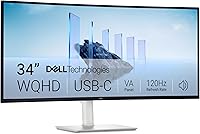
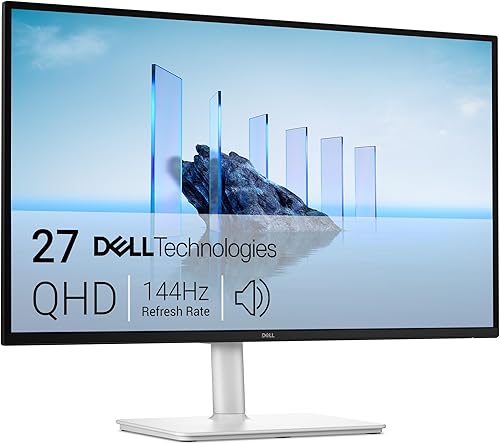
The Dell S3425DW is a 34-inch curved ultrawide with a 3440 x 1440 resolution and a 21:9 aspect ratio. The Dell S2725DSM is a 27-inch QHD display, so a dual setup means adding another screen and checking how both fit your computer and desk.

Ultrawide vs dual monitors for work: what is the main difference?
An ultrawide gives you one broad display; dual monitors give you 2 separate displays. Choose based on whether you want a continuous canvas or distinct screens for different tasks.
A single wide screen has no center bezel dividing a full-width document or timeline. You can place windows side by side, though how well that works depends on your operating system and apps.
Two monitors let you position each screen independently. For example, you can place a video call on one and your notes on the other, or turn one display to portrait if its stand supports that position.
Neither layout guarantees more usable work area by itself. Resolution, window arrangement, viewing distance and the work you do affect how much fits comfortably.
Does an ultrawide replace two monitors?
An ultrawide can replace two displays for many side-by-side window tasks, but it remains one physical screen. If you need to angle a secondary screen toward a client or keep two screens at different heights, dual monitors offer more placement options.
The S3425DW has 3440 x 1440 pixels across a 21:9 display. The S2725DSM has 2560 x 1440 pixels in a 16:9 layout, and a second one would add another display area if your computer can drive both.
Pixel counts don't tell you which work pattern will feel better. Check your usual apps and decide whether one broad surface or a pair of separate screens would make their layout easier.
Which setup fits your workday?
Choose the display arrangement that keeps your most-used tasks visible without constant window shuffling. Make a list of the apps you use together, then sketch where each would go.
An ultrawide works well for a wide spreadsheet beside a browser or a video timeline with controls nearby. If you often compare 2 documents, one continuous surface also avoids a bezel through the middle of the comparison.
Dual monitors suit workflows with clear task groups. Keep email or chat on one screen and the main document on the other, or reserve one display for a meeting while you work on the second.
Our guide to monitors for spreadsheets and Excel can help you think through sheet width, text size and side-by-side windows. The right layout depends on your workbook and how much of it you need visible at once.
When is one wide screen easier?
A single display is simpler when you prefer one screen to center in front of your chair. It also avoids managing separate stands or a dual mount, and a single screen connection may be easier if your laptop has limited display outputs.
The S3425DW connects through HDMI or USB-C. Its USB-C supports up to 65W power delivery, which can be useful with a compatible laptop; check your computer's port capabilities and power needs.
An ultrawide isn't automatically a better fit for a small desk. The S3425DW measures 31.78 inches wide, so measure the space between nearby walls, shelves or speakers before choosing it.
When do two screens help more?
Two displays help when you want to dedicate a screen to a steady reference, call or communication app. You can also arrange each display independently instead of moving every window within one broad desktop.
A dual setup needs compatible video outputs and support from your computer. Before buying, check whether your laptop can run 2 external displays at your preferred resolution and refresh rate.
If you need help checking laptop ports and display settings, follow our guide to setting up dual monitors with a laptop. It covers the setup questions to resolve before you decide between one wide display and two.
How much desk space do the setups need?
Measure the desk width, depth and viewing distance before choosing either layout. Include stands, speakers, a laptop and the room needed for your keyboard and mouse.
The S3425DW is 31.78 inches wide and 8.73 inches deep with its stand. A pair of S2725DSM monitors would occupy roughly 48.14 inches of combined screen width before allowing for the gap, viewing angle or stands.
That combined width is a simple sum of the monitors' stated widths, not a required desk measurement. Angling the screens inward changes the footprint, and the stands may affect usable depth.
If your desk is narrow, a 27-inch monitor may be a more practical starting point than a 34-inch ultrawide. Compare the dimensions and viewing distance in our guide to whether a 32-inch monitor is too big for office work.
Can a monitor arm make dual screens easier to fit?
A dual monitor stand can free desk surface by lifting both displays, but it still needs a suitable desk and compatible monitors. The HUANUO FlowLift supports screens from 13 to 32 inches, each weighing 4.4 to 19.8 pounds, with 75 x 75 mm or 100 x 100 mm VESA mounting holes.
Its clamp or grommet mount is intended for wooden desks 0.59 to 3.54 inches thick, with no cross beam or panel obstructing the underside. Confirm these conditions before selecting it, and leave enough space behind the desk for the arms to move.
The FlowLift's arms allow height, tilt, swivel and rotation adjustment. It can help position two displays at a more useful height, but your screens' weight and mounting pattern need to fit its limits.
Which option is easier to connect to a laptop?
Choose based on the ports your laptop can use for external displays, not just the connector on the monitor. A USB-C socket doesn't always support video or enough power for your setup.
The S3425DW has HDMI and USB-C, with up to 65W power delivery over USB-C. This can reduce cable clutter with a compatible laptop, though the laptop's USB-C port must support video output.
The S2725DSM has HDMI and DisplayPort. For 2 such monitors, check how many independent displays the laptop supports and whether it needs a dock or adapter.
Adapters can add cost and complexity, and a dock's capabilities vary. Confirm the laptop model's display support, port version and supported resolution before choosing a screen configuration.
How do the displays compare for image sharpness?
Compare resolution with screen size and viewing distance. A larger panel doesn't always make text clearer if it spreads the same pixel count over more space.
The S3425DW's 3440 x 1440 resolution spans a 34-inch curved screen. The S2725DSM's 2560 x 1440 resolution is on a 27-inch screen, so the two use different aspect ratios and screen sizes despite sharing the same vertical pixel count.
If you want help weighing resolution against size, read whether 1440p is worth it over 1080p for office work. Text scaling and how far you sit from the screen can change what looks comfortable.
Two 27-inch screens don't become one ultrawide with the same shape. Their center gap and separate display boundaries remain, even when the total pixel count is high.
Which setup is better for video calls and screen sharing?
A single monitor can make screen sharing more straightforward, while dual monitors can keep the call visible beside your work. The best fit depends on the meeting software and how you present content.
With an ultrawide, you can keep a call window beside a document, but a shared screen may include more width than viewers can read easily. Sharing one app window instead of the full desktop can help keep the presentation focused.
With two monitors, place the call on one screen and the content you're presenting on the other. Before a meeting, confirm which screen or window will be shared so private notes and messages stay out of view.
Both layouts can work well for remote meetings. Think about whether you need to watch faces while presenting, read shared content, or take notes without switching windows.
What should you consider before buying?
Check your computer, work layout and desk before choosing a display. A few measurements and compatibility checks can prevent an awkward setup.
Start with the laptop or desktop. Verify its supported external displays, video ports, resolution limits and whether you need a dock or adapter.
Then measure the desk and mark the display positions with paper or removable tape. Sit at your normal distance and check that you can see the whole screen area without turning your head more than feels comfortable.
Finally, decide where calls, documents and reference apps should stay. If you can't describe a useful layout for 2 screens, an ultrawide may be simpler; if you want to position each screen separately, dual monitors may fit better.
Which should you choose for work?
Pick an ultrawide if you want one broad, centered display; pick dual monitors if separate screens make your tasks easier to organize. Measure the desk and confirm computer support before ordering.
The Dell S3425DW is a strong fit for a wide workspace, with a 34-inch 21:9 display and USB-C power delivery up to 65W. The Dell S2725DSM suits a modular setup, and you can pair 2 displays if your computer supports the arrangement.
Choose the HUANUO FlowLift when you want to raise 2 compatible monitors off the desk and adjust their positions. Check the arm, VESA and desk limits first.
For help choosing screen shape and size, continue to our guide to curved monitors for a home office.
Our score weighs specs, features and buyer feedback against what you're shopping for.
Which products fit each setup?
The S3425DW is the single-screen option, while the S2725DSM and FlowLift support a separate-screen arrangement. Match the display and mount to your desk and computer.
Sources
Frequently asked questions
Is an ultrawide better than 2 monitors for work?
An ultrawide is better when you want one continuous workspace for side-by-side apps, while 2 monitors suit work that benefits from separate screens. Consider how often you share a screen, move windows between displays or need a document visible beside a call.
Can an ultrawide replace 2 monitors?
An ultrawide can replace 2 monitors for many side-by-side tasks, but it remains one display. It won't give you 2 independently positioned screens, and your computer and apps must support the window layout you want.
Do dual monitors need more desk space?
Two monitors need room for both screens, their stands or a compatible dual mount, and enough space to sit centered. A mount can lift both displays off the desktop, but check its screen, VESA and desk limits first.
Which setup is easier to connect to a laptop?
It depends on the laptop and monitor ports. The Dell S3425DW has USB-C with up to 65W power delivery, while the Dell S2725DSM has HDMI and DisplayPort; confirm your laptop supports the connection and display arrangement you need.