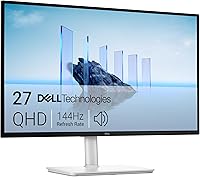
What Is a KVM Monitor, and Do You Need One?
A KVM monitor has a built-in switch that lets you use one keyboard and mouse with two connected computers. You switch control between computers through the monitor instead of moving the peripherals or adding a separate KVM switch.
On this page (8 sections)
- What is a KVM monitor?
- How does a monitor KVM switch work?
- What connections do you need for a KVM monitor?
- When is a KVM monitor useful?
- Is a built-in KVM better than a separate KVM switch?
- Which monitor features matter alongside KVM?
- How do you choose between KVM monitor options?
- Do you need a KVM monitor?
A KVM monitor has a built-in switch that lets you use one keyboard and mouse with two connected computers. It can make a shared laptop-and-desktop setup easier to control without adding a separate KVM box.
KVM stands for keyboard, video, and mouse. The monitor displays the selected computer's video, while its KVM feature routes your keyboard and mouse to that computer.
What is a KVM monitor?
A KVM monitor combines a display with a keyboard-and-mouse switch for connected computers. When you switch from one computer to another, the screen and shared peripherals follow the selected device.
The computers still need suitable video connections, such as HDMI, DisplayPort, or USB-C, and a connection that lets the monitor share USB peripherals. The exact ports and setup steps vary by monitor.
A KVM monitor doesn't combine two computers into one. It gives you a way to control them from the same desk with fewer separate peripherals.
How does a monitor KVM switch work?
A monitor's KVM feature routes your keyboard and mouse to the computer you select. You connect the computers to the display, connect the peripherals to the monitor, then switch control using the monitor's supported method.
Some displays include automatic switching. Others require you to change the input or use an on-screen menu, so check the monitor's instructions before relying on a particular switching method.
USB-C can carry video, data, and sometimes laptop power through one connection. If charging is part of your setup, see whether a monitor can charge a laptop over USB-C and check the monitor's charging capacity against your laptop's needs.
What connections do you need for a KVM monitor?
You need a video connection from each computer and a compatible USB connection for the shared keyboard and mouse. The combination depends on the monitor and computers, so check the ports and setup steps before buying.
A laptop with USB-C may be able to send video and data over one cable, if its port supports those functions and the monitor supports the connection. With HDMI or DisplayPort, you may also need a separate USB connection for peripherals.
For a clearer look at the trade-offs between common display connections, read USB-C vs HDMI for a monitor. If you're still planning the screens themselves, our guide to setting up dual monitors with a laptop explains the separate display setup.
Does USB-C automatically mean a monitor has KVM?
No. A USB-C port can carry video and data without the monitor having a KVM switch.
Check the monitor's features for KVM support and confirm which ports you need to use.
When is a KVM monitor useful?
A KVM monitor is useful when you regularly switch between two computers but want to keep one keyboard and mouse on your desk. It can suit someone sharing a display between a work laptop and a personal desktop, for example.
It can also reduce the number of devices and cables on your desk compared with a separate KVM box. A monitor with USB-C may further simplify a laptop connection, depending on its video, data, and power features.
You may not need a KVM feature if you use only one computer, rarely switch between devices, or prefer separate keyboards and mice. In those cases, prioritize screen size, resolution, and the connections you will use.
If you are comparing displays for a laptop desk, browse our guide to monitors for a laptop home office.
Is a built-in KVM better than a separate KVM switch?
A built-in KVM keeps the switching feature inside the monitor, while a separate KVM switch is an extra device connected to the computers and display. Either approach can work; the right one depends on how many computers and screens you need to share and which connections they use.
A separate switch may suit an existing monitor that lacks KVM or a setup with specific switching needs. Check its supported video connections, resolution, number of computers and monitors, and how it switches peripherals.
For example, the UGREEN HDMI KVM Switch is a separate option for two computers sharing two HDMI monitors and USB peripherals. Each computer needs two HDMI cables and a USB-A connection to the switch, and both monitors show the selected computer.
This model supports up to 4K at 60Hz and includes button and desktop-controller switching. It does not support DisplayPort connections or keyboard shortcut switching, so check your computer and monitor ports first.
A built-in KVM may mean fewer separate devices to place on your desk. The Samsung ViewFinity S8 37 includes a built-in KVM switch with split-screen, Picture-in-Picture, and Picture-by-Picture modes, plus USB-C charging up to 90W.
Choose based on your actual setup. A built-in KVM is convenient when the monitor already fits your screen needs; a separate switch may make more sense if you want to keep your current display.
Which monitor features matter alongside KVM?
Choose a monitor that supports your required screen layout and computer connections first. A KVM feature is useful only if the monitor's inputs work with both computers and its USB connections can share your peripherals.
If you want a wider workspace for multiple windows, the LG 34U640B-B has a 34-inch 21:9 WQHD display and a built-in KVM feature for controlling two PCs with one monitor, keyboard, and mouse. It also has USB-C with display, data, and laptop charging up to 65W.
Its Dual Controller feature supports moving files between systems with drag-and-drop, according to LG. Check that the computers and software in your setup support the workflow you want before choosing it for file sharing.
For a more compact 27-inch option, the ASUS ProArt PA278CGRV has a QHD display and Auto KVM for switching between two laptops or PCs with one keyboard and mouse. It includes USB-C with power delivery up to 96W, HDMI, DisplayPort with daisy-chaining, and a built-in USB hub.
Compare USB-C charging needs and video ports before you buy. For other laptop monitor considerations, see how to set up dual monitors with a laptop.
How do you choose between KVM monitor options?
Start with the computers you want to connect, then match their video and USB ports to the monitor or switch. Check how many screens you need to share and whether you want a built-in feature or a separate device.
A built-in KVM may suit you if you want one display to handle switching and your chosen monitor fits your desk. A separate HDMI KVM switch can work with an existing setup, provided its connection limits match your computers and screens.
If you connect a laptop, check whether one USB-C cable can handle video, data, and the amount of charging you need. Our guide to monitors that charge a laptop covers that part of the decision.
Do you need a KVM monitor?
You may need a KVM monitor if you often switch between two computers and want to share one keyboard and mouse. Check that it supports your computers' video and USB connections, along with any laptop charging you need.
Choose a separate KVM switch if you want to keep your current monitor and its supported connections fit the switch. If you use one computer or rarely switch devices, choose a monitor around your screen and port needs instead, then review our laptop home office monitor guide.
Frequently asked questions
What does KVM mean on a monitor?
KVM means keyboard, video, and mouse. A monitor with a built-in KVM switch can show video from connected computers and let you use one keyboard and mouse to control the selected computer.
You still need to connect each computer to the monitor and follow its instructions for sharing USB devices.
Can I use one keyboard and mouse with two computers?
Yes. A monitor with a built-in KVM can share one keyboard and mouse between two connected computers, if it has the needed video and USB connections.
A separate KVM switch can do the same job when your monitor does not include that feature.
Does a KVM monitor switch between two computers automatically?
Some monitors offer automatic switching, while others require you to select the computer in the monitor's menu or use a button. Check the monitor's instructions for its switching method and which connections each computer needs.
Do I need a KVM monitor for a laptop and desktop?
You may find a KVM monitor useful if you regularly switch between a laptop and desktop while keeping one keyboard and mouse on your desk. If you rarely change computers, or already use separate peripherals, the extra switching feature may not be worth prioritizing.