1080p vs 4K Computer Monitor: Which to Pick (November 2026)
Choose 1080p for a 24 inch screen and 4K for a 27 inch screen where sharp text matters. In this 1080p vs 4K computer monitor comparison, the deciding factor is pixel density for the size you sit close to, not the bigger number alone.
On this page (10 sections)
- 1080p vs 4K computer monitor: the quick verdict
- The four monitors side by side
- Pixel density is the number that decides sharpness
- Screen size and desk depth change the answer
- Text clarity for work, reading and spreadsheets
- Color and panel type for creative work
- Gaming: refresh rate vs pixel count
- Connections, cables and a tidy desk
- Who should buy which monitor?
- The verdict: which resolution fits your desk?
Choose 1080p for a 24 inch screen and 4K for a 27 inch screen where sharp text matters. In this 1080p vs 4K computer monitor comparison, the deciding factor is pixel density for the size you sit close to, not the bigger number alone.
The math is simple: 1080p spreads about 2 million pixels across the screen, while 4K packs in about 8 million. On a small screen that gap is hidden; on a large one it shows up in text and fine detail.
This comparison uses four real monitors at both resolutions to show where each one earns its place on a desk.


1080p vs 4K computer monitor: the quick verdict
The Sceptre Curved 24-inch is the best pick for most desks because 1080p at 24 inches stays crisp and costs far less. Pick the LG 27UP850K-W when you work with small text, photos or video and sit close to a 27 inch screen.
Pixel density is the number that decides this. A 24 inch 1080p screen lands near 92 pixels per inch, and a 27 inch 4K screen lands near 163.
Those figures tell you how fine the detail looks at normal viewing distance.
Resolution alone doesn't make a screen better. A 27 inch 1080p panel drops to about 82 pixels per inch, so it looks softer than a 24 inch 1080p screen even though it's bigger.
That's why "4K is sharper" is only half the story. Match the resolution to the screen size and your desk first, then look at the extra features.
The four monitors side by side
Two 1080p screens and one 4K screen cover the realistic choices for a home desk. The table below lines up resolution, size and panel type so the density differences are easy to see.
| Product | Best for | Resolution | Screen size | Panel | Our score |
|---|---|---|---|---|---|
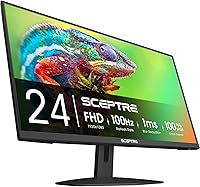
| Sceptre Curved 24-inch Gaming Monitor 1080p R1500 | most desks | 1920 x 1080 | 24 in | VA curved | 9.7 |
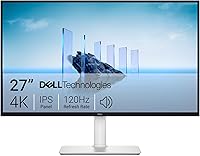
| LG 27UP850K-W | sharp text and detail | 3840 x 2160 | 27 in | IPS | 8.3 |
| Samsung Essential S3 27 Curved (S36GD) | a large 1080p screen | 1920 x 1080 | 27 in | LED curved | 8.0 |
| Philips 241V8LB | budget office pick | 1920 x 1080 | 24 in | VA | 7.6 |
| Monitor | Resolution | Size | Panel | Refresh |
|---|---|---|---|---|
| Sceptre Curved 24-inch | 1920 x 1080 | 24 in | VA curved | 75Hz |
| LG 27UP850K-W | 3840 x 2160 | 27 in | IPS | 60Hz |
| Samsung Essential S3 27 Curved | 1920 x 1080 | 27 in | LED curved | 100Hz |
| Philips 241V8LB | 1920 x 1080 | 24 in | VA | 100Hz |
The LG is the only 4K screen here, and it's also the only IPS panel in the group. IPS tends to hold color across wide viewing angles, which matters if you share the screen.
The two 24 inch models sit at the sweet spot for 1080p. The 27 inch Samsung shows what happens when you stretch 1080p over more inches: you gain size and refresh but lose fine detail.
Refresh rate is a separate axis. The Samsung and Philips reach 100Hz, the Sceptre reaches 75Hz, and the LG runs at 60Hz.
Higher refresh smooths motion, but it doesn't sharpen text.
Pixel density is the number that decides sharpness
Sharpness comes from how many pixels land in each inch of screen, so a smaller 1080p screen can look cleaner than a larger one. This is the core of the 1080p vs 4K monitor question.
A 24 inch 1080p screen puts about 92 pixels per inch in front of you. At a normal desk distance of 20 to 24 inches, that's enough that individual pixels are hard to see, and text reads cleanly.
A 27 inch 4K screen puts about 163 pixels per inch in front of you. Small fonts and fine lines in photos and spreadsheets look noticeably smoother, which is why editors and designers favor it.
A 27 inch 1080p screen falls to about 82 pixels per inch. You can still read everything, but edges soften and small text looks less tidy next to the 4K panel.
If you want the full breakdown of that larger-screen case, our guide on whether 1080p is good for a 27 inch monitor walks through the trade-offs.
When the extra pixels stop mattering
Above a certain density, more pixels stop being visible at your seat. A 24 inch 1080p screen already crosses that line for most people, so a 4K screen at the same size would mostly buy you smoother edges rather than a dramatic jump.
The gap opens when the screen gets bigger or you sit closer. A 27 inch 4K screen at arm's length shows its advantage in documents and image editing, where fine detail sits right in front of your eyes.
Screen size and desk depth change the answer
The closer you sit and the bigger the screen, the more 4K earns its price. Measure your desk depth before you choose a resolution, because viewing distance changes what you can see.
On a shallow desk you sit close, so individual pixels get bigger in your view. That makes a larger 1080p screen show its softness more clearly.
A deep desk pushes the screen further away, and a 27 inch 1080p screen starts to look acceptable for video and casual browsing. Text still lags behind a 4K panel at the same distance.
The Sceptre's 24 inch curved screen measures 21.6 inches wide, so it fits a compact desk without crowding. The LG at 27 inches needs a bit more width and a stand that adjusts.
Matching resolution to the inches in front of you
As a rough rule, 1080p suits screens up to about 24 inches for close work. 4K suits 27 inches and up when text clarity is the goal.
If your desk is narrow, a 24 inch 1080p screen is the practical choice. It keeps density high and leaves room for a keyboard and mouse.
If your desk has depth and you lean toward creative work, the 27 inch 4K screen gives you more canvas and sharper detail at once. Our guide to the best computer monitor for a home office covers desk fit in more detail.
Text clarity for work, reading and spreadsheets
4K wins for long reading and dense spreadsheets because small text holds its shape. 1080p at 24 inches is still comfortable for email, writing and most office tasks.
The LG's 27 inch 4K panel at about 163 pixels per inch makes 10-point text look smooth. You can fit more columns on screen without shrinking the font to an unreadable size.
The Philips 241V8LB takes a different route to comfort. Its EasyRead mode gives long documents a more paper-like feel, and the VA panel's 3000:1 contrast keeps black text crisp against white.
The Sceptre also uses a VA panel, and its 98% sRGB coverage keeps colors accurate for everyday work. At 1080p on 24 inches, text is clean without any scaling setup.
For a writer or a student, the 24 inch 1080p screens handle the job well. For an analyst juggling wide spreadsheets or an editor checking fine detail, the 4K screen pulls ahead.
Scaling and setup on each resolution
At 1080p on 24 inches, you can usually run the screen at 100% scaling and skip the settings dance. Text comes out at a comfortable size straight away.
At 4K on 27 inches, Windows and macOS often suggest 150% scaling so text stays readable. That gives you the sharpness of 4K with the layout size of a smaller screen, which is the reason many people buy it.
Scaling isn't a flaw; it's how 4K works on a desk. Plan for it and the extra pixels become an advantage rather than a source of tiny menus.
Color and panel type for creative work
The LG's IPS panel and 95% DCI-P3 coverage make it the pick for color-sensitive work. The VA panels here offer deeper contrast, which suits video and dark scenes.
IPS holds color steadier across wide angles, so a colleague leaning over your shoulder still sees roughly the same image. The LG also carries DisplayHDR 400 and HDR10 support for compatible content.
VA panels like the ones in the Sceptre and Philips reach a 3000:1 contrast ratio. That gives darker blacks and richer depth in movies and games, though colors can shift more when you view from the side.
For photo editing and design, the 4K IPS screen is the stronger base. For streaming, gaming and general use, a curved VA screen with good contrast is often the more satisfying pick.
The Samsung's curved 1800R panel wraps around your view and adds depth for video. Its eye comfort certification also reduces blue light and flicker for long sessions.
Gaming: refresh rate vs pixel count
1080p is easier to drive and reaches higher refresh rates for less, while 4K gives more detail if your graphics card can keep up. Pick by your hardware before you pick by the number on the box.
The Samsung and Philips both hit 100Hz, which smooths fast motion and makes cursor movement feel lighter. The Sceptre runs at 75Hz and lists FreeSync support, which helps reduce tearing when the frame rate varies.
The LG runs at 60Hz. Its 4K detail is a treat in slower, story-driven games, but a 60Hz panel won't match a 100Hz screen for fast shooters.
The Samsung also lists G-Sync Compatible and a Game Mode that adjusts color and contrast. Those help a 1080p screen feel responsive without asking much of your graphics card.
If you play competitive games, a 24 inch 1080p screen at 75Hz or 100Hz is the practical base. If you play slower titles and want detail, the 4K screen shows more of what the artists built.
Connections, cables and a tidy desk
4K needs a modern cable and port, so check what your computer can output before you buy. The LG offers the widest set of inputs, including USB-C.
The LG 27UP850K-W has USB-C with up to 90W power delivery, DisplayPort, two HDMI ports and two USB 3.0 ports. That lets a laptop run the screen and charge over one cable, which keeps a desk clean.
The Sceptre offers two HDMI ports and VGA, plus built-in speakers. The Samsung pairs HDMI with D-Sub.
The Philips keeps to HDMI and VGA.
For a 1080p screen, an HDMI cable is all most people need. For 4K, plan on DisplayPort or a recent HDMI connection; an old VGA cable can't carry the signal.
Built-in speakers on the Sceptre and LG save desk space if you don't use separate speakers. The LG's stereo speakers use Waves MaxxAudio, while the Sceptre's are a simpler built-in set.
Who should buy which monitor?
Pick the Sceptre for a compact desk and everyday work, and the LG for close detail work at 27 inches. The other two fill specific gaps: size without 4K, and budget office use.
The Sceptre Curved 24-inch is the best fit for most people. Its 24 inch 1080p screen stays sharp at desk distance, the curve adds a bit of immersion, and two HDMI ports cover a PC and a console.
The LG 27UP850K-W suits anyone who reads small text, edits photos or works in dense software all day. The 27 inch 4K panel and USB-C power delivery make it a strong laptop companion.
The Samsung Essential S3 27 Curved is for buyers who want a big curved screen and a 100Hz refresh without paying for 4K. It's a good fit for video, light gaming and casual browsing at a distance.
The Philips 241V8LB is the budget office pick. EasyRead mode and thin bezels make it a comfortable screen for writing and spreadsheets, and its low price leaves room in the budget.
If you're setting up two screens, our guide to the best 24 inch monitor for home office desks covers pairing and placement. And if you're weighing the middle ground, the 4K vs 1440p monitor for work comparison shows where 1440p sits between these two resolutions.
The best fit by need
For a small desk and general use, the Sceptre is the pick. For sharp text and creative detail, the LG wins.
For a large curved screen on a budget, the Samsung makes sense. For plain office work at the lowest cost, the Philips does the job.
The verdict: which resolution fits your desk?
For most desks, 1080p at 24 inches is the smarter buy; go 4K at 27 inches when sharp text and detail matter more than price. That's the practical answer to the 1080p vs 4K computer monitor question.
The Sceptre Curved 24-inch takes the overall win because it hits the density sweet spot, adds a 75Hz refresh and two HDMI ports, and keeps a small desk clear. It's the screen most people should start with.
Choose the LG 27UP850K-W if you sit close to a 27 inch screen and read or edit fine detail all day. Its 4K panel and USB-C power delivery justify the step up for that kind of work.
The Samsung Essential S3 27 Curved is the answer when size and refresh matter more than sharpness. The Philips 241V8LB is the low-cost office screen for writing and reading.
Measure your desk depth and the width you can spare first. Then match the resolution to the inches in front of you, and the choice becomes straightforward.
Frequently asked questions
Is 4K worth it over 1080p on a computer monitor?
It's worth it when you sit close to a 27 inch or larger screen and read small text or edit photos. On a 24 inch screen at normal desk distance, 1080p already looks crisp and costs much less.
Is 1080p good for a 27 inch monitor?
1080p works on a 27 inch screen for video and casual use, but text is softer than on a 24 inch 1080p screen. For sharp documents and detail work at that size, 4K is the better fit.
Does 4K need a special cable?
Yes. Carry 4K over DisplayPort or a recent HDMI connection, and use USB-C where the monitor supports it.
An old VGA cable can't carry a 4K signal, so match the cable to the port.
Is a curved 1080p monitor easier on the eyes?
A curve changes how the screen wraps around your view, which some people find comfortable for long sessions. Sharpness depends on resolution and size, so a 24 inch 1080p curved screen stays crisper than a 27 inch 1080p one.
Which resolution is better for gaming?
1080p is easier to drive and reaches higher refresh rates at a lower cost. 4K gives more detail but needs a stronger graphics card to keep frame rates smooth, so pick by your hardware first.
Can I mix a 1080p and a 4K monitor on one desk?
Yes. Windows and macOS handle two screens at different resolutions, though you may need to set scaling on each.
Match the physical height so your eyes don't jump when you look between them.