Best Computer Monitor for a Home Office: A Plain Guide
The best computer monitor for a home office is one that fits your desk, viewing distance and daily tasks. Start with 27 inches for a balanced workspace, then choose QHD for clear everyday work or 4K when you want finer detail.
On this page (9 sections)
- What is the best computer monitor for a home office?
- Which screen size fits your desk and work?
- How much resolution do you need for office work?
- Which connections should you check before buying?
- What other features help with everyday work?
- Which Dell monitors fit different home office needs?
- How should you compare these monitor options?
- What should you measure before choosing a home office monitor?
- How do you choose the best computer monitor for a home office?
The best computer monitor for a home office is the one that suits your desk, viewing distance and daily work. A 27-inch screen is a balanced starting point, with QHD for everyday clarity and 4K for finer detail.
Before you compare models, measure the space where the stand will sit and note which ports your computer has. The right screen should leave room for your keyboard, mouse and work materials.
This guide covers screen size, resolution, connections and useful features, then compares four Dell options. For more focused advice, see our guides to 27 vs 32 inch monitors for office work and the best monitors for a laptop home office.
What is the best computer monitor for a home office?
The best monitor for a home office is usually a 27-inch display with a resolution that fits your work and budget. It gives you room for multiple windows without needing the desk space and viewing distance a larger screen can call for.
Pick 24 inches if your desk is shallow or you sit close to the screen. Consider 32 inches if you want a larger workspace and can place it far enough away to scan the whole display comfortably.
Resolution matters along with size. A 27-inch QHD monitor gives you more desktop detail than a 27-inch 1080p screen, while 4K has more pixels for fine text and images.
Compare our guides to 1080p on a 27-inch monitor and 1440p vs 1080p for office work for more detail.
Which screen size fits your desk and work?
A 24- or 27-inch monitor fits many home office setups, while 32 inches suits a larger desk and a longer viewing distance. Measure before you choose, including the stand depth and space for your other desk items.
| Screen size | Consider it if | Check before choosing |
|---|---|---|
| 24 inches | You have limited desk space or sit close | Whether the screen feels large enough for your usual apps |
| 27 inches | You want a balance of workspace and footprint | The stand dimensions and resolution |
| 32 inches | You want a larger, more open view | Desk depth and comfortable viewing distance |
These are starting points, not fixed rules. A stand can use more desk depth than the screen itself, and a wide bezel or base can affect placement.
A larger display can make windows easier to arrange, but it does not automatically improve clarity. If your desk has room for 32 inches, read is a 32-inch monitor too big for office work? before moving up.
What monitor size works best for a home office desk?
A 27-inch monitor is a reasonable first size to compare if you have a standard desk and want room for side-by-side windows. If your work is mostly one document at a time or your desk is compact, a 24-inch screen may be easier to place.
Think about your viewing distance as well as width. You should be able to see the whole screen without repeatedly turning your head or leaning forward.
How much resolution do you need for office work?
QHD is a practical choice for general office work, and 4K offers more detail for readers who want finer text or a larger workspace. Match the resolution to the screen size and your computer, rather than choosing the largest number by default.
| Resolution | Common name | A fit to consider |
|---|---|---|
| 1920 x 1080 | Full HD or 1080p | Basic tasks and smaller screens |
| 2560 x 1440 | QHD or 1440p | More desktop detail for everyday work |
| 3840 x 2160 | 4K UHD | Fine text and image detail on larger screens |
Text size and scaling affect how much information you can read comfortably. A 4K display can show fine detail, but you may choose larger scaling so text is easier to read.
QHD can offer a useful balance for documents, web work and spreadsheets. If you are deciding between these options, our 4K vs 1440p monitor guide explains the main trade-offs.
Is 4K or QHD better for a home office monitor?
QHD suits many people who want a clear image for everyday tasks without moving to 4K. Choose 4K if you value finer detail or want more pixels for high-resolution images, and check whether your computer supports the resolution you plan to use.
Which connections should you check before buying?
Check the ports on both your computer and monitor before you choose. HDMI and DisplayPort carry video, while USB-C can also carry power on some monitors when the laptop supports it.
A USB-C connection may reduce cable clutter when it can handle both display output and laptop charging. Confirm the monitor's power delivery and your laptop's charging needs, since USB-C support alone does not mean every laptop will charge at the rate you want.
If your computer has HDMI but the monitor has HDMI and DisplayPort, you can use the matching port. For a laptop, see our guide to USB-C vs HDMI for a monitor and setting up dual monitors with a laptop.
What other features help with everyday work?
Height adjustment, tilt and swivel can help you position a display to suit your desk. Built-in speakers may also be useful if you want basic audio without separate speakers.
Consider these features in relation to your setup:
- Adjustable stand: Check whether it supports the height and angle changes you need.
- USB-C power delivery: Useful when your laptop can charge through the same cable used for video.
- Built-in speakers: Convenient for calls and basic audio, though your sound needs may call for separate speakers.
- Anti-glare screen: A practical feature if your desk sits near a window or bright light.
- Refresh rate: Higher refresh rates can make movement appear smoother, though many office tasks do not require them.
A feature only helps if it solves a real need. For example, USB-C does not simplify your setup if your laptop cannot send video through that port.
Which Dell monitors fit different home office needs?
These four Dell monitors cover 27-inch QHD and 4K choices, plus a larger 32-inch 4K option. Choose by size, resolution and connections rather than assuming one model suits every desk.
Dell S2725QS: 27-inch 4K
The Dell S2725QS is a 27-inch 4K monitor with an IPS display, 120Hz refresh rate and HDMI and DisplayPort connections. Its stand supports height, pivot, swivel and tilt adjustment.
Choose it if you want 4K detail on a 27-inch screen and value flexible stand adjustment. It also has built-in speakers and an anti-glare screen.
Dell S2725DSM: 27-inch QHD
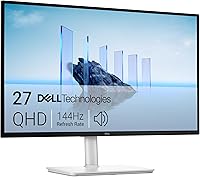
The Dell S2725DSM is a 27-inch QHD monitor with a 144Hz refresh rate, HDMI and DisplayPort connections, and an adjustable stand. Its IPS display has a 2560 x 1440 resolution.
Consider it if QHD meets your needs and you want to keep the monitor at 27 inches. Built-in speakers are included for basic audio.
Dell S3225QS: 32-inch 4K
The Dell S3225QS is a 32-inch 4K monitor with a VA display, 120Hz refresh rate and HDMI and DisplayPort connections. Its stand supports height and tilt adjustment.
This model is worth comparing if you want a bigger screen and have enough desk depth for it. It also includes built-in speakers, though its stand has fewer adjustment options than the 27-inch models above.
Dell S2725DC: 27-inch QHD with USB-C
The Dell S2725DC is a 27-inch QHD monitor with USB-C, HDMI and DisplayPort connections. Its USB-C connection supports up to 65W power delivery, and its stand supports height, tilt, pivot and swivel adjustment.
Choose it if your laptop supports video and charging through USB-C and 65W power delivery suits its needs. It also has built-in speakers and a pop-out USB-C port with up to 15W power delivery.
How should you compare these monitor options?
Start with desk fit and screen size, then choose resolution and connections. Use the table to compare the basic differences among these four Dell models.
| Model | Screen and resolution | Main connection detail | Stand adjustment |
|---|---|---|---|
| Dell S2725QS | 27-inch, 4K | HDMI, DisplayPort | Height, pivot, swivel, tilt |
| Dell S2725DSM | 27-inch, QHD | HDMI, DisplayPort | Height, pivot, swivel, tilt |
| Dell S3225QS | 32-inch, 4K | HDMI, DisplayPort | Height, tilt |
| Dell S2725DC | 27-inch, QHD | USB-C, HDMI, DisplayPort | Height, pivot, swivel, tilt |
If you want a compact 4K screen, compare the S2725QS. If QHD is enough, the S2725DSM is a simpler match; choose the S2725DC when its USB-C power delivery fits your laptop.
The S3225QS has the largest screen here, so make sure the width and viewing distance suit your room. For more 32-inch options, see our best 32-inch monitors for a home office.
What should you measure before choosing a home office monitor?
Measure your available desk width and depth, then compare them with the monitor and stand dimensions. Leave room for your keyboard, mouse, notebook and any laptop you keep open beside the display.
Also check the following:
- Viewing distance: Make sure you can see the full screen without leaning in or turning repeatedly.
- Stand placement: A wide or deep base can use more room than you expect.
- Laptop ports: Match the computer's available video outputs to the monitor.
- Charging needs: If using USB-C, check that its power delivery suits your laptop.
- Screen position: Decide whether you need height or rotation adjustments for your desk.
Write down your measurements before comparing product options. This makes it easier to rule out screens that do not fit your room or computer.
How do you choose the best computer monitor for a home office?
For the best computer monitor for a home office, pick 27 inches for a balanced setup, QHD for practical everyday work and 4K for finer detail. Choose 32 inches when your desk and viewing distance can accommodate a larger screen.
If you use a laptop, confirm the ports and charging support before choosing USB-C. When you're unsure about screen size, compare 24-inch home office monitors and 32-inch options against your desk measurements first.
Frequently asked questions
What size monitor is best for a home office?
A 27-inch monitor is a useful starting point for a home office because it offers room for documents and apps without taking up as much desk space as a 32-inch display. Measure your desk depth and viewing distance first, and compare 24-inch options if space is tight.
Is 4K worth it for office work?
4K can be useful on a 27- or 32-inch monitor when you want finer text and image detail, but QHD can be a more practical balance for everyday work. Check your computer's output support and how you prefer to scale text before choosing.
Should I get a 27-inch or 32-inch monitor?
Choose 27 inches for a more compact desk setup and 32 inches if you want a larger view and have enough room to sit at a comfortable distance. Screen size alone does not determine sharpness, so compare resolution as well.
Do I need USB-C on a home office monitor?
USB-C is useful if your laptop supports display and charging over USB-C and you want one cable for both. Check the monitor's power delivery and your laptop's requirements; otherwise, HDMI or DisplayPort may cover your display connection.
Is QHD enough for a home office monitor?
QHD, also called 1440p, is enough for many home office tasks such as writing, browsing and spreadsheets. Choose 4K if finer detail matters to you, and confirm your computer can drive the resolution at the refresh rate you want.