Dell S2725DC vs S2725DSM: Which Monitor to Buy? (November 2026)
Pick the Dell S2725DC if you want one USB-C cable to carry video and up to 65W of laptop charge. Pick the S2725DSM if your desktop already has its own power and you just want a clean QHD picture with the same 144Hz panel.
On this page (8 sections)
- Quick verdict: which one should most people buy?
- S2725DC vs S2725DSM: the two side by side
- The panel and picture are the same on both
- USB-C and laptop charging: the S2725DC advantage
- Ports and connections: HDMI, DisplayPort and the hub
- Stand, ergonomics and desk fit
- Price, value and what each one costs you
- Which Dell 27-inch monitor should you buy?
Pick the Dell S2725DC if you want one USB-C cable to carry video and up to 65W of laptop charge. Pick the S2725DSM if your desktop already has its own power and you just want a clean QHD picture with the same 144Hz panel.
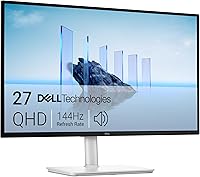
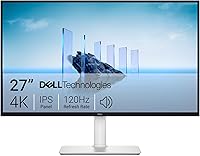
The Dell S2725DC vs S2725DSM question is really about ports and cables, not picture quality. Both screens share a 27-inch QHD IPS panel, so the choice comes down to how your computer connects and what sits on your desk.
The S2725DC costs more and adds USB-C with power delivery plus a pop-out quick access port. The S2725DSM keeps the same display and stand but connects over HDMI and DisplayPort only.

Quick verdict: which one should most people buy?
The Dell S2725DC wins for most laptop users because its USB-C port sends video, data and up to 65W of power over a single cable. That one cable replaces a charger and a separate display cable on your desk.
If you work from a laptop, the DC is the practical pick. Plug in once and the screen lights up while the battery charges, so you can move between desk and bag without re-cabling.
The DSM is the better buy when a desktop tower or game console already has its own power. You connect over HDMI or DisplayPort and skip paying for a hub you won't use.
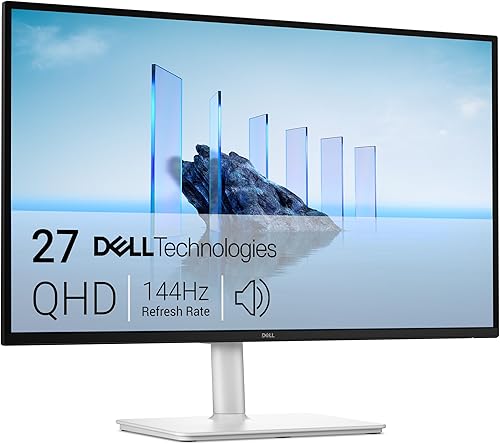
Both are 27-inch QHD monitors with a 144Hz refresh rate, 1ms MPRT, AMD FreeSync and dual 3W speakers. Neither is a budget office screen; both target a modern work and entertainment desk.
The overall winner is the Dell 27 Plus USB-C Monitor, the S2725DC model sold under Dell's 27 Plus name. It carries the same panel and stand as the DSM, so you lose no picture quality by choosing it.
S2725DC vs S2725DSM: the two side by side
These two Dell 27-inch monitors differ mainly in connectivity and price, not in the image you see. The table below lines up the specs that decide the choice.
| Product | Best for | Resolution | Panel | USB-C power | Our score |
|---|---|---|---|---|---|
| Dell 27 Plus USB-C Monitor | laptop desks | 2560 x 1440 | IPS, 350 nits | Up to 65W | 9.4 |
| Dell S2725DSM | desktop towers | 2560 x 1440 | IPS, 350 nits | 8.8 | |
| Dell S2725DC | USB-C charging | 2560 x 1440 | IPS, 350 nits | Up to 65W | 8.5 |
The resolution, panel type, brightness, contrast, color coverage, refresh rate and response time match. So do the physical stand and the height, tilt, swivel and pivot adjustments.
The gap opens at the ports. The S2725DC has USB-C for video and up to 65W of laptop charging, plus a pop-out USB-C and USB-A port for quick device hookups.
The S2725DSM has HDMI and DisplayPort 1.4 inputs only. It still includes an HDMI 2.1 cable in the box, so a desktop or console can connect straight away.
Both are ash white, measure 24.07 inches wide and weigh about 14 pounds with the stand. Either fits the same desk footprint.
The panel and picture are the same on both
Expect the same 2560 x 1440 IPS image from either monitor, so don't choose between them on sharpness or color. The deciding specs are identical across the two models.
Both give you a 27-inch QHD screen at 2560 x 1440. At this size, QHD text is crisp and there is real room for two windows side by side.
Each uses an IPS panel with 350 nits brightness and a 1,500:1 contrast ratio. The maker rates color coverage at 99% sRGB.
The 144Hz refresh rate and 1ms MPRT response time suit fast scrolling, video and light gaming. AMD FreeSync helps smooth frame pacing when the graphics source supports it.
Dual 3W speakers are built into both. TÜV 4-star eye comfort certification covers flicker-free backlighting and a low blue light mode on both.
If the picture is the same, the decision moves to the cable and the price. That is where these two Dell models part ways.
What 99% sRGB and 1,500:1 mean on a desk
A 99% sRGB rating covers the color space most websites, photos and office documents are built around. Reds, greens and blues land where the source expects them, so a spreadsheet chart or a product photo does not shift hue when you move the file between screens.
The 1,500:1 contrast ratio is measured as a static figure, not a marketing peak. Dark text on a light page stays clean at 350 nits, and dark video scenes keep their shadow detail instead of crushing to black.
IPS viewing angles are wide enough that two people can watch the same screen from either side of a desk. Color stays close to the mark as you move off center, which matters for a shared monitor.
Both panels carry the same numbers, so none of this separates the DC from the DSM. It only tells you the picture is solid on either one.
USB-C and laptop charging: the S2725DC advantage
The S2725DC sends video, data and up to 65W of power to a laptop over one USB-C cable. The DSM cannot do that, so a laptop needs its own charger plus a display cable.
This is the single biggest reason to choose the DC. On a small desk, one cable means fewer chargers and less clutter behind the screen.
The DC's USB-C port also carries data, so a keyboard, mouse or external drive can hang off the monitor. A pop-out port on the side adds a USB-C (up to 15W) and a USB-A connection for quick device swaps.
Dell lists 65W as the charge delivered to a connected laptop. Many modern USB-C laptops charge well at that level; heavier gaming or workstation laptops may want more.
If your laptop charges over USB-C and has DisplayPort Alt Mode, the DC replaces your charger for a typical workday. If your laptop has no USB-C video, the DC's hub features go unused.
Who benefits most from the USB-C port?
A hybrid worker who carries one laptop between home and office gets the most from the DC. A single plug at the desk covers the screen and the battery.
A student in a small room also gains. One cable leaves more desk space for books and notes.
Anyone using a fixed desktop tower gains little. The tower has its own power, so the DC's extra USB-C value doesn't come into play.
The pop-out port and what it is for
The DC's quick access port sits within reach of the front edge, so you don't have to feel behind the screen to find it. It pairs a USB-C port at up to 15W with a USB-A port.
That 15W is enough to top up a phone or charge a wireless mouse dongle, but it is a top-up figure, not a laptop charge. The 65W laptop charge comes from the main USB-C input.
The USB-A port takes a flash drive or a receiver for a wireless keyboard without an adapter. For anyone who moves files between the desk and the bag several times a day, the port saves bending and guessing.
The DSM has no such port. Its HDMI and DisplayPort inputs face the back, so every device swap means reaching around the panel.
Ports and connections: HDMI, DisplayPort and the hub
The DSM keeps things simple with HDMI and DisplayPort 1.4; the DC adds USB-C and downstream USB ports. Count your devices before you pick.
The DSM's HDMI and DisplayPort inputs cover a desktop, a game console and a media stick one at a time. You switch sources at the monitor, and the included HDMI 2.1 cable means one less thing to buy.
The DC adds USB-C video and data on top of HDMI and DisplayPort 1.4. It also has a downstream USB-C at 15W and USB-A ports for accessories.
That makes the DC a small hub for a laptop desk. A webcam, mouse receiver or phone can live on the monitor instead of the laptop.
The DSM suits a clean single-source setup. If you only ever connect one tower, its two video inputs already cover the job.
If you want a wider look at how Dell's 27-inch models compare on ports and panels, our Dell S2725DSM vs S2725QS comparison lines up another close sibling. It helps when you are choosing between refresh rate and connection options across the same family.
Stand, ergonomics and desk fit
Both monitors sit on the same fully adjustable stand, so ergonomics won't decide this comparison. The difference is what you plug into the screen, not how it moves.
The stand offers height, tilt, swivel and pivot adjustment on both models. That lets you raise the screen to eye level and turn it portrait for long documents or code.
Each has a matte, anti-glare screen that reduces reflections from a window or lamp. At 24.07 inches wide, either screen leaves room on a typical desk for a keyboard and notebook.
The ash white finish brightens a light desk. It also shows smudges more than a black bezel, so plan a quick wipe now and then.
If your desk is shallow, the pivot and swivel settings matter more than the width. You can angle the screen toward you and reclaim depth behind it.
Two-screen setups
Both models work as part of a dual-monitor desk. The DC's USB-C hub and extra ports make it easier to chain a second screen or share accessories between two displays.
The DSM needs its own cable per screen. That is fine with a tower that has two outputs, but it means more cabling to manage.
Our guide to Dell vs Samsung monitors for work compares how the two brands handle multi-screen desks. It is useful if you are building a two-screen setup and weighing a second brand.
Price, value and what each one costs you
The S2725DC costs more than the S2725DSM, and the extra money buys the USB-C hub and laptop charging. Whether that is worth it depends on your computer.
For a laptop owner, the DC can replace a charger and a dock in one purchase. That usually makes the higher price easier to justify.
For a desktop owner, the DSM gives the same QHD 144Hz panel for less. The missing USB-C costs you nothing if the tower already has its own power and display outputs.
Neither screen includes a webcam. If video calls matter, budget for a separate camera either way.
Warranty is the same 3-year limited cover on both. The DC adds a 3-year spare part availability figure in its data, so long-term support is part of the pitch on the hub model.
Is the S2725DC worth the extra cost?
Yes, for a laptop desk. The single cable removes a charger and a display cable from your setup, and the pop-out port handles quick device swaps.
No, for a fixed desktop. A tower already has power, so the USB-C port adds little beyond tidier cabling.
Our Dell S2725QC vs U2725QE comparison looks at two other Dell 27-inch options if you are still weighing the wider family. It helps when you want more ports or a different panel tier.
Which Dell 27-inch monitor should you buy?
Buy the S2725DC if you use a laptop and want one cable for video and charging. Buy the S2725DSM if you have a desktop tower or console and want the same QHD 144Hz picture for less.
The overall pick for most readers is the Dell 27 Plus USB-C Monitor, which is the S2725DC model under Dell's 27 Plus name. It keeps the panel and stand and adds the USB-C hub that most modern desks can use.
Choose the S2725DSM when your computer already has its own power. The DSM is also the calmer choice if you dislike extra cables and ports you won't use.
A few buyers may find the DC's 65W charge too low for a heavy laptop. In that case the DSM plus your own charger is the simpler route.
If you are still deciding whether Dell is the right brand for your room, our guide on whether Dell monitors are good for a home office covers build, panel quality and stand options across the range.
Either way, the S2725DC vs S2725DSM call comes down to your cable. If your laptop charges over USB-C, the DC earns its higher price; if not, the DSM gives you the same screen without paying for a hub.
Frequently asked questions
Is the Dell S2725DC the same as the S2725DSM?
No. They share the same 27-inch QHD IPS panel, 144Hz refresh, 350 nits and stand, but the S2725DC adds USB-C with up to 65W power delivery and extra USB ports.
The S2725DSM connects over HDMI and DisplayPort only.
Does the S2725DSM charge a laptop?
No. The S2725DSM has HDMI and DisplayPort inputs only, so it cannot send power to a laptop.
If you want one cable for picture and charging, choose the S2725DC or the 27 Plus USB-C model.
Can the S2725DC run a MacBook over USB-C?
The S2725DC's USB-C port carries video and up to 65W of power, so it can drive a compatible USB-C laptop screen and charge it at the same time. Check your laptop's USB-C power and display support before you rely on one cable.
Which monitor is better for a dual-screen desk?
Both work for two screens, but the S2725DC's USB-C hub and pop-out port make it easier to chain a second display or dock accessories. Pick the S2725DSM only if each screen gets its own cable from a desktop.
Do both monitors have built-in speakers?
Yes. Both the S2725DC and S2725DSM have dual 3W built-in speakers.
That means either screen can handle video calls and casual listening without a separate soundbar.