Best 1440p Monitors for Work: Top 8 Picks (October 2026)
The best QHD monitors for office work include the Dell S2725DSM for an adjustable all-day setup, the ASUS ProArt PA278QV for color-focused creative work, and the ViewSonic VS2725-2K for linking multiple displays.
On this page (6 sections)
The best 1440p monitor for work for most desks is the Dell S2725DSM, with a 27-inch QHD screen, four stand adjustments and built-in speakers. The ASUS ProArt PA278QV suits color-focused creative work, while the LG 27U631A-B adds USB-C with up to 15W power delivery for a laptop setup.
QHD means 2560 x 1440 pixels. At 27 inches, that resolution gives you more workspace detail than Full HD, while keeping the display size manageable for many desks.
For a deeper look at the resolution tradeoff, read our guide to whether 1440p is worth it over 1080p. If you are still choosing a screen size, our comparison of 27 vs 32 inch monitors for work can help you narrow it down.
Our picks at a glance
-
1
-
2

-
3

How we chose the best QHD monitor for work
The best QHD monitor for work should match your desk, daily tasks and computer connections. We compared resolution, stand movement, ports, refresh rate and work-focused features.
A height-adjustable stand can help you position the screen without adding a separate arm. If you switch between portrait documents and landscape apps, pivot adjustment can also matter.
Color coverage and calibration features are more relevant for photo and video work than for email or spreadsheets. For general office use, prioritize a comfortable screen size, clear text and ports that match your computer.
Our score weighs specs and features against what you're shopping for.
| Product | Best for | Resolution | Stand | Connections | Our score |
|---|---|---|---|---|---|
| Dell S2725DSM | an adjustable all-day setup | QHD, 2560 x 1440 | Height, tilt, pivot and swivel adjustment | HDMI and DisplayPort | 8.8 |
| ASUS ProArt PA278QV | color-focused creative work | QHD, 2560 x 1440 | HDMI, DisplayPort, Mini DisplayPort, DVI-D | 8.1 | |
| ViewSonic VS2725-2K | linking multiple displays | QHD, 2560 x 1440 | HDMI and DisplayPort | 7.9 | |
| Samsung ViewFinity S6 (S61F) | adjustable document viewing | QHD, 2560 x 1440 | Height and pivot adjustment | HDMI and DisplayPort | 7.8 |
| LG 27U631A-B | a USB-C laptop desk | QHD, 2560 x 1440 | HDMI and USB-C | 7.5 | |
| ASUS VA27AQ | varied device connections | QHD, 2560 x 1440 | HDMI, DisplayPort and VGA | 7.4 | |
| MSI PRO MP273Q E14 | smooth scrolling and motion | QHD, 2560 x 1440 | Tilt adjustment | 7.3 | |
| ViewSonic VA2715-2K-MHD | simple QHD desk setups | QHD, 2560 x 1440 | HDMI and DisplayPort | 7.1 |
The best 1440p monitors for different work setups
These 8 QHD monitors cover flexible stands, color-focused creative work, daisy chaining, USB-C laptop desks and straightforward HDMI or DisplayPort setups. Pick the features that solve a real problem at your desk.
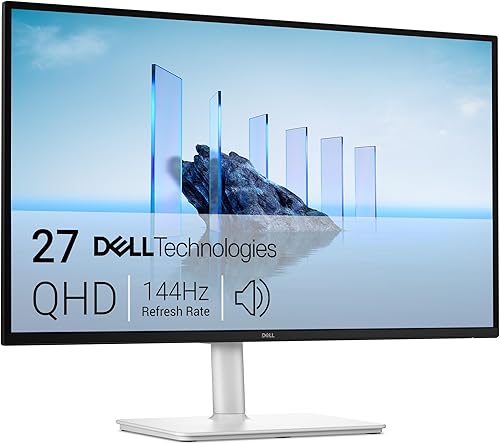
Dell S2725DSM: Best for an adjustable all-day setup
- 27-inch QHD (2560 x 1440)
- Height, tilt, pivot and swivel adjustment
- Built-in dual 3W speakers
- 144Hz refresh rate
The Dell combines a 27-inch QHD screen with a fully adjustable stand, speakers and HDMI or DisplayPort connections. It fits a desk where screen positioning and built-in audio matter.
Pros
- Four stand adjustments
- Built-in dual 3W speakers
- 144Hz refresh rate
Cons
- No USB-C connection
- White finish may not suit every desk
The Dell S2725DSM is the best all-around pick for a desk where you want to change screen position during the day. Its stand adjusts for height, tilt, pivot and swivel, giving it more placement options than a tilt-only stand.
The 27-inch screen has QHD resolution and a 144Hz refresh rate. HDMI and DisplayPort handle video connections, while the dual 3W speakers can cover basic audio without adding separate speakers to the desk.
Dell also includes an anti-glare screen and says the display has TÜV 4-star certification for eye comfort. Those features may suit long work sessions, but take breaks and set brightness to match your room.
Choose the Dell if adjustability, speakers and a higher refresh rate matter together. If your work depends on color coverage and calibration features, the ASUS ProArt below is a closer match.
ASUS ProArt PA278QV: Best for color-focused creative work
- 27-inch QHD IPS display
- 100% sRGB and 100% Rec. 709 coverage
- Calman Verified and Delta E < 2
- HDMI, DisplayPort, Mini DisplayPort, DVI-D and USB hub
Color coverage and ProArt controls make this a focused pick for photo, video and design work. Its stand adjusts for height, tilt, pivot and swivel.
Pros
- Calman Verified with Delta E < 2
- Four stand adjustments
- Integrated USB hub
Cons
- No USB-C connection
- The wide range of ports may be more than basic office work needs
The ASUS ProArt PA278QV is the color-focused choice for creative work. It has a 27-inch QHD IPS panel, 100% sRGB and Rec.
709 coverage, and Calman Verified Delta E < 2 accuracy.
ProArt Preset and Palette controls let you adjust color, brightness and black levels for different tasks. Its stand adjusts for height, tilt, pivot and swivel, and the connection options include HDMI, DisplayPort, Mini DisplayPort and DVI-D.
An integrated USB hub adds ports for connected devices, and ASUS includes flicker-free backlighting and a blue-light filter. This mix is more useful for design and media workflows than a desk used mainly for email.
Choose it when color features and flexible positioning matter more than USB-C. For a simpler screen focused on everyday desk work, compare the ViewSonic VS2725-2K.
ViewSonic VS2725-2K: Best for linking multiple displays
- 27-inch QHD IPS display
- 100Hz refresh rate
- DisplayPort-out for daisy chaining
- Flicker-Free and Blue Light Filter
DisplayPort-out supports daisy chaining, which can help when you want multiple screens with fewer cable runs. ViewMode presets include Text, Web, Movie, Game and Mono.
Pros
- DisplayPort-out for daisy chaining
- 100Hz refresh rate
- Text and Web ViewMode presets
Cons
- No USB-C connection
- Stand adjustment details are not specified here
The ViewSonic VS2725-2K is a useful pick for a multi-monitor layout because it has DisplayPort-out for daisy chaining. It also has HDMI and DisplayPort inputs, so check how your computer will connect before planning the cable path.
Its 27-inch QHD IPS display has a 100Hz refresh rate and a frameless design. ViewMode presets include Text and Web alongside Game, Movie and Mono, giving you options for different screen tasks.
Flicker-Free technology and a Blue Light Filter are included. ViewSonic also provides a 3-year limited warranty, according to its product details.
Choose this model if daisy chaining or the ViewMode presets fit your desk. If you want height and pivot adjustments for long documents, consider the Samsung ViewFinity S6.
Samsung ViewFinity S6 (S61F): Best for adjustable document viewing

- 27-inch QHD IPS display
- 100Hz refresh rate
- Height and pivot adjustment
- Eye Saver Mode
The Samsung combines QHD resolution with height and pivot adjustments, useful for long documents and portrait-oriented work. It has HDMI and DisplayPort connections.
Pros
- Height and pivot adjustments
- 100Hz refresh rate
- Eye Saver Mode
Cons
- No USB-C connection
- Stand swivel adjustment is not specified
The Samsung ViewFinity S6 (S61F) fits document-heavy work where height and pivot adjustment help. Its stand adjusts in both ways, and Samsung describes Eye Saver Mode as a comfort feature for long sessions.
The 27-inch IPS panel has QHD resolution and a 100Hz refresh rate. HDMI and DisplayPort cover common computer connections, though the model does not list USB-C.
Pivot adjustment can be useful for long documents, coding or portrait pages. Check that the monitor's other stand movements meet your preferred screen position, since tilt and swivel adjustment are not specified here.
Choose the Samsung if height and pivot are the adjustments you want. For a laptop setup where one cable matters, the LG has USB-C.
LG 27U631A-B: Best for a USB-C laptop desk

- 27-inch QHD IPS display
- USB-C with up to 15W power delivery
- 100Hz refresh rate
- Reader Mode
USB-C can connect a laptop and provide up to 15W of power, so check whether that amount suits your laptop. Reader Mode and Flicker Safe are included for extended viewing.
Pros
- USB-C connection with up to 15W power delivery
- 100Hz refresh rate
- Reader Mode
Cons
- Power delivery is limited to 15W
- Stand tilt is the only adjustment specified
The LG 27U631A-B is the laptop-focused pick with USB-C. It supports up to 15W power delivery, so confirm that this is enough for your laptop before relying on it for charging.
Its 27-inch QHD IPS display has a 100Hz refresh rate and up to 99% sRGB color gamut expression. Reader Mode and Flicker Safe are included, and the stand has tilt adjustment.
The USB-C port can reduce desk cable clutter when it suits your computer and charging needs. HDMI is also available for another device, but the listed power output is modest compared with many laptop chargers.
Choose the LG if USB-C display connection and limited charging through the monitor fit your setup. For a wider mix of legacy and current video inputs, the ASUS VA27AQ has HDMI, DisplayPort and VGA.
ASUS VA27AQ: Best for varied device connections

- 27-inch QHD IPS display
- HDMI, DisplayPort and VGA
- 99% sRGB coverage
- Built-in stereo speakers
HDMI, DisplayPort and VGA give this ASUS several ways to connect a computer or other device. Its 99% sRGB coverage and built-in stereo speakers add useful options for a mixed home office.
Pros
- Three video connection types
- 99% sRGB coverage
- Built-in stereo speakers
Cons
- Stand adjustment details are not specified here
- No USB-C connection
The ASUS VA27AQ is a flexible option for mixed devices because it offers HDMI, DisplayPort and VGA. That range can help when a desk includes equipment with different video outputs.
Its 27-inch QHD IPS panel includes 99% sRGB coverage, and the monitor has built-in stereo speakers. ASUS also lists flicker-free and low-blue-light features for viewing comfort, plus a 75Hz refresh rate with Adaptive-Sync.
The frameless design may suit a side-by-side monitor arrangement. Stand adjustment details are not specified here, so check the exact stand movement you need before choosing it.
Choose the VA27AQ when its ports and speakers match your desk. If you want a 144Hz refresh rate for smoother motion, the MSI PRO MP273Q E14 is another option.
MSI PRO MP273Q E14: Best for smooth scrolling and motion

- 27-inch QHD IPS display
- 144Hz refresh rate
- Tilt adjustment
- Flicker Free and Low Blue Light
The MSI pairs QHD with a 144Hz refresh rate for smooth scrolling and motion. Its stand tilts, and it supports VESA 100 x 100 mm mounting.
Pros
- 144Hz refresh rate
- Built-in speakers
- VESA mount compatibility
Cons
- Stand adjustment is limited to tilt
- No USB-C connection
The MSI PRO MP273Q E14 is the 144Hz pick for smooth scrolling and motion. It combines a 27-inch QHD IPS display with Adaptive-Sync and a tilt-adjustable stand.
MSI includes Flicker Free and Low Blue Light features, along with Eye-Q Check. HDMI and DisplayPort are available, and the stand supports VESA 100 x 100 mm mounting if you prefer an arm or wall bracket.
The 144Hz refresh rate is more than many office tasks require, but it may suit a desk used for work and fast-motion entertainment. The stand adjustment is limited to tilt, so plan around that if you need height or pivot movement.
Choose the MSI if refresh rate is a priority and tilt adjustment is enough. For a simpler QHD setup with ViewMode presets, consider the ViewSonic VA2715-2K-MHD.
ViewSonic VA2715-2K-MHD: Best for simple QHD desk setups

- 27-inch QHD display
- 100Hz refresh rate
- HDMI and DisplayPort
- Flicker-Free and Blue Light Filter
This ViewSonic offers a straightforward 27-inch QHD setup with HDMI and DisplayPort. Its ViewMode presets include Text, Web, Movie, Game and Mono.
Pros
- 100Hz refresh rate
- Text and Web ViewMode presets
- HDMI and DisplayPort
Cons
- No USB-C connection
- Stand adjustment details are not specified here
The ViewSonic VA2715-2K-MHD is a straightforward QHD option for a basic desk setup. It has HDMI and DisplayPort, plus a 27-inch 2560 x 1440 screen with a 100Hz refresh rate.
ViewMode presets include Text, Web, Movie, Game and Mono. Flicker-Free technology and a Blue Light Filter are also included, which gives you screen options for reading and general computer work.
Its frameless design can work in a multi-monitor arrangement. Confirm the stand movement you need before buying, since adjustment details are not specified here.
Choose this model when QHD resolution and common video connections cover your needs. If your work is mainly spreadsheets, our guide to monitors for spreadsheets and Excel offers more task-specific advice.
Is 27 inches the right size for a 1440p work monitor?
A 27-inch QHD monitor is a practical starting point for many work desks. It gives you more detail than a 27-inch Full HD screen, while taking up less width than a 32-inch display.
Desk depth affects how large the screen feels in daily use. Measure the distance from your eyes to the display and consider whether you prefer larger text or more room for side-by-side windows.
If you are comparing screen sizes, see our guide to whether a 32-inch monitor is too big for office work. You can also read about 1080p on a 27-inch monitor before deciding whether QHD is the right step.
Which monitor features matter most for office work?
Choose stand movement and connections around your daily setup, then add specialized features only when you need them. A monitor arm or a laptop dock may also change which built-in features matter to you.
- For flexible positioning: The Dell and ASUS ProArt offer height, tilt, pivot and swivel adjustment.
- For portrait documents: The Dell, ASUS ProArt and Samsung list pivot adjustment.
- For laptop connection: The LG has USB-C with up to 15W power delivery.
- For color work: The ASUS ProArt has 100% sRGB and Rec. 709 coverage, plus Calman Verified Delta E < 2 accuracy.
- For daisy chaining: The ViewSonic VS2725-2K includes DisplayPort-out.
- For a higher refresh rate: The Dell and MSI list 144Hz.
A higher refresh rate can make motion and scrolling appear smoother, but it is not a substitute for resolution, color features or an adjustable stand. For typical office tasks, choose a balanced setup that meets your actual needs.
Should you choose 1440p or 4K for work?
Choose 1440p when you want a detailed desktop screen and don't need the added pixel count of 4K. Choose 4K when your work benefits from finer detail or you want more space for dense layouts, provided your computer and preferred text scaling suit it.
Screen size and viewing distance affect how useful extra resolution feels. Our 4K vs 1440p monitor guide compares the tradeoffs for desk work.
Which 1440p monitor should you pick for work?
Pick the Dell S2725DSM if you want a 27-inch QHD monitor with a fully adjustable stand and built-in speakers. Choose the ASUS ProArt PA278QV for color-focused creative work, the LG 27U631A-B for a USB-C laptop desk, or a ViewSonic model for its DisplayPort-out or ViewMode presets.
Before you decide, compare the screen size with your desk depth and check that the ports match your computer. Our home office monitor guide can help if you are still weighing broader setup needs.
Our top 3 picks at a glance
-
1
-
2
-
3
Frequently asked questions
Is a 1440p monitor good for office work?
Yes. A 1440p monitor can show more detail than 1080p at the same screen size, which can help when you work with documents, spreadsheets or several windows.
A 27-inch QHD screen is a common fit, but viewing distance and text size still affect comfort.
Compare it with our guide to whether 1440p is worth it over 1080p.
Is 27 inches a good size for a 1440p monitor?
Yes, 27 inches is a practical size for many QHD desk setups. It gives you a useful balance of screen area and detail without taking up as much width as a 32-inch display.
Measure your desk and viewing distance first.
Our guide to whether a 32-inch monitor is too big for office work covers the larger option.
Should I choose USB-C for a work monitor?
Choose USB-C when your laptop supports video over USB-C and you want a single cable for display and some power. Power delivery varies, so compare the monitor's output with your laptop's needs.
The LG 27U631A-B provides up to 15W.
For connection tradeoffs, see our USB-C vs HDMI monitor guide.
What should I check before buying a QHD work monitor?
Check the stand adjustments, video connections, screen size and any color needs tied to your work. A USB-C connection can simplify a laptop desk, while a height-adjustable stand helps you set the screen where you want it.
If you mainly use large tables, our guide to monitors for spreadsheets and Excel explains which screen traits matter.